

Setup instructions
All IMPC MCP servers are hosted online, so there is nothing to install locally. For public access, users only need to add the server URL in an MCP-compatible client that supports Streamable HTTP.
List of available IMPC MCP servers
- IMPC Solr:
https://www.ebi.ac.uk/mi/impc/mcp/solr/
- IMPC Publications:
https://www.ebi.ac.uk/mi/impc/mcp/publication/
- IMPC Orthology:
https://www.ebi.ac.uk/mi/impc/mcp/orthology/
- IMPC Allele:
https://www.ebi.ac.uk/mi/impc/mcp/allele/
MCP clients
To use the IMPC MCP servers, add the server URLs to your MCP configuration. Please follow the instructions for Codex app, IDE extension or Cursor below:
Using Codex app
Codex app can be downloaded from the official website here. In the Codex app, add each IMPC server as a custom MCP server:
1. Open Settings, then go to Integrations → MCP servers tab and add a custom MCP server.
2. Enter a clear name, such as impc-solr, impc-publications, impc-orthology, or impc-allele.
3. Select Streamable HTTP.
4. Paste the IMPC MCP server URL into the URL field.
5. Leave Bearer token env var, Headers, and Headers from environment variables blank for the public IMPC servers.
6. Click Save, then repeat for any other IMPC server you want to add.
Codex custom MCP setup screen for allele service:
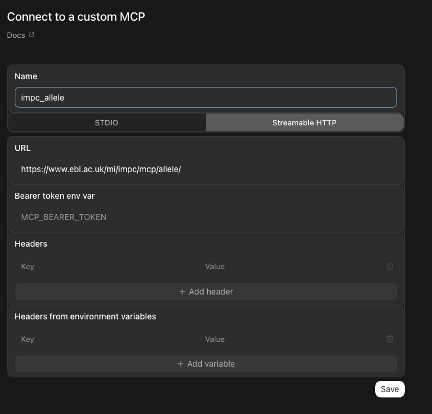
Users only need to choose Streamable HTTP and paste the IMPC MCP server URL. Leave bearer token and header fields empty unless a future private IMPC server requires authentication.
Using Codex CLI or IDE extension
The Codex command-line tool (CLI), and IDE extension all use the same MCP configuration file: config.toml
- Open your
config.tomlfile. - Add the following entries:
[mcp_servers.impc-solr]
url = "https://www.ebi.ac.uk/mi/impc/mcp/solr/"

[mcp_servers.impc-publications]
url = "https://www.ebi.ac.uk/mi/impc/mcp/publication/"

[mcp_servers.impc-orthology]
url = "https://www.ebi.ac.uk/mi/impc/mcp/orthology/"

[mcp_servers.impc-allele]
url = "https://www.ebi.ac.uk/mi/impc/mcp/allele/"
For these IMPC servers, only the url field is required. No additional settings are needed unless authentication is introduced in the future.
Using Cursor
If you use Cursor’s MCP configuration add the IMPC server URLs to the file:
- Open the
.cursor/mcp.jsonfile, or navigate to Cursor → Settings → Tools & MCPs. - Add the following configuration:
{
  "mcpServers": {
    "impc-solr": {
      "url": "https://www.ebi.ac.uk/mi/impc/mcp/solr/"
    },
    "impc-publications": {
      "url": "https://www.ebi.ac.uk/mi/impc/mcp/publication/"
    },
    "impc-orthology": {
      "url": "https://www.ebi.ac.uk/mi/impc/mcp/orthology/"
    },
    "impc-allele": {
      "url": "https://www.ebi.ac.uk/mi/impc/mcp/allele/"
    }
  }
}
Verify the connection
After saving the configuration:
- Restart Codex or Cursor (if it is already running).
- Open the MCP servers panel or tools list in your application.
- Confirm that the IMPC servers appear and are available for use.
If the servers do not appear, check that the URLs were copied exactly as shown and that the configuration file contains valid TOML (Codex) or JSON (Cursor).
Once the MCP servers are configured and visible in your AI tool, you can start querying IMPC data using natural language. Please see example queries in the previous sections.
Other MCP clients
Any MCP-compatible client that supports Streamable HTTP transport can connect. Point it to one or more of the server URLs above. The client will discover the available tools through the MCP protocol.